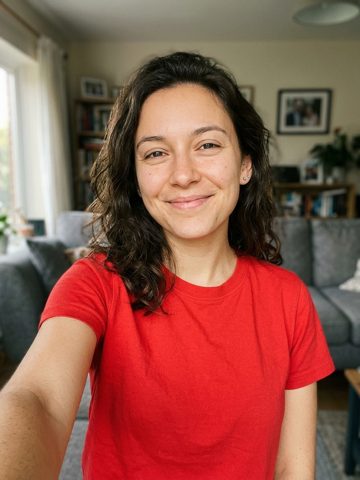
Input Photo
Create your AI Burning Bridges video from one photo. Put your chosen character in Drake’s party scene, with the performance and soundtrack included. No filming or editing needed.
Different main characters, one Burning Bridges party. See each photo beside its finished video, then choose who stars in your version.
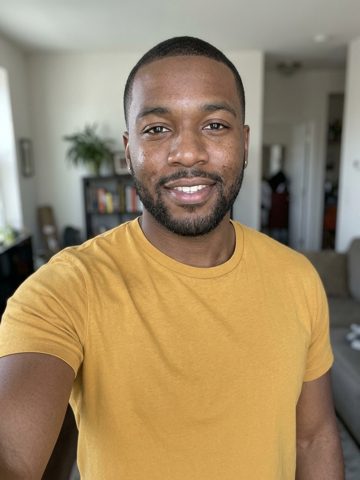
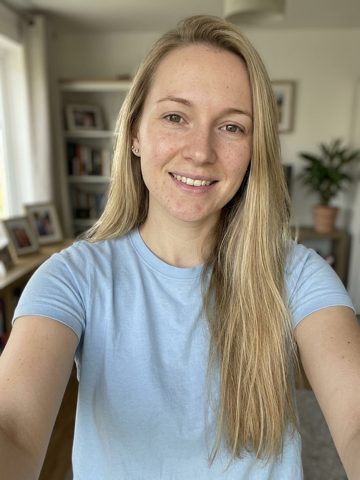
Your photo supplies the main character. The template brings together the party setting, performance, and soundtrack.
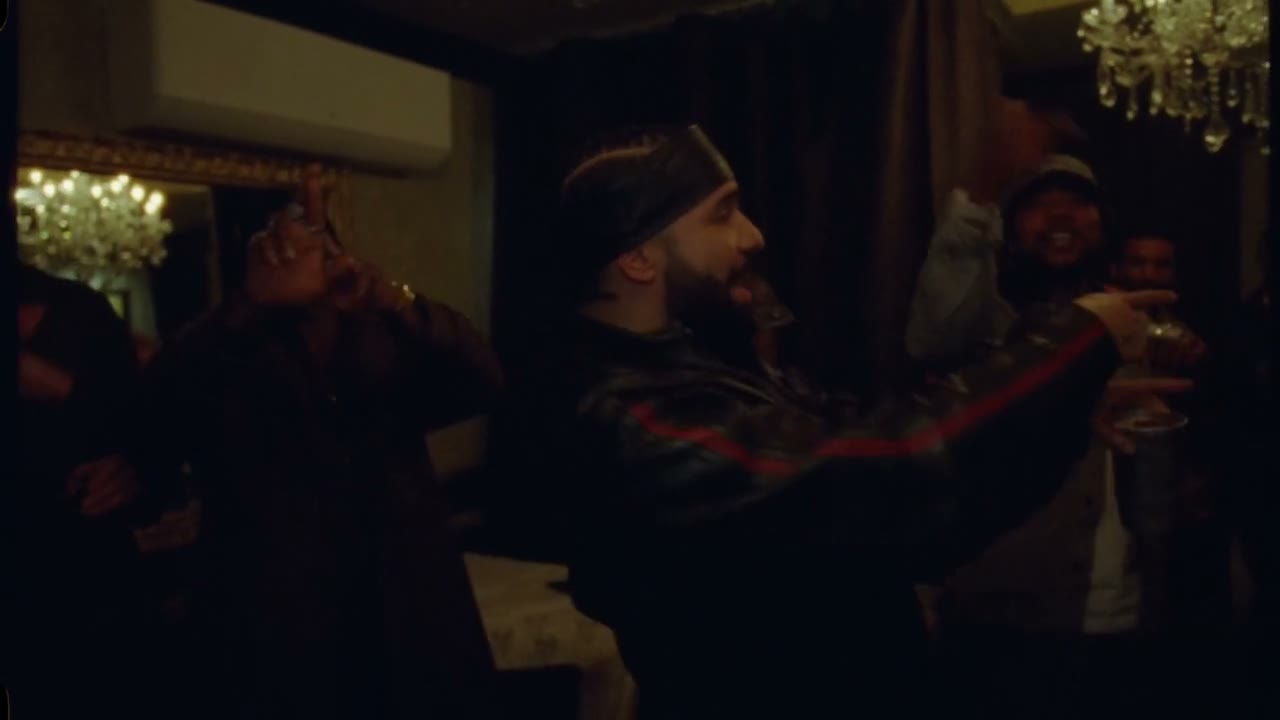
Warm chandeliers overhead, partygoers close behind, and your main character in front of the camera.
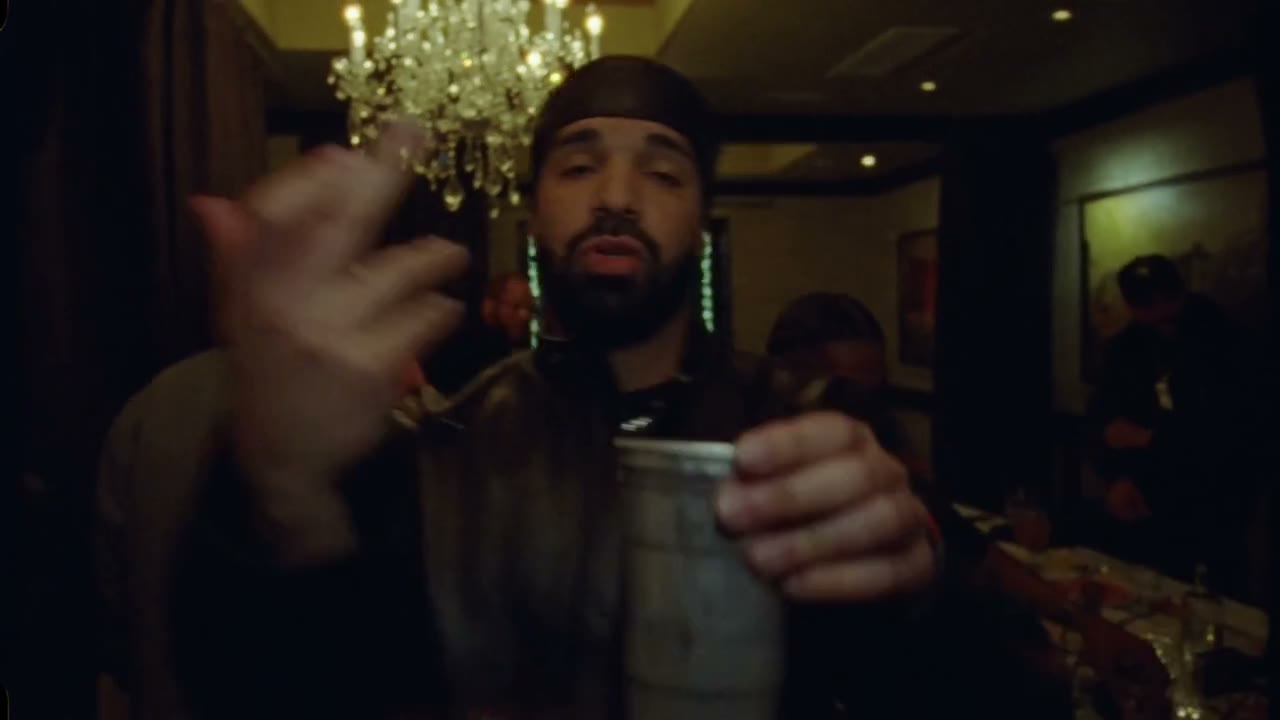
Your character performs to the camera with a drink in hand, while the handheld shot captures the party around them.
The soundtrack you hear in the preview comes with your finished video.
Add a clear image of one person or character, with the face and upper body visible. Crop it if needed.
Use the default settings, or adjust the model, quality, and length. Preview the selected clip and check the credit cost before generating.
Length tip: Shorter videos use the beginning of the performance. Choose Ultra and 29 seconds for the full routine.
Start your video generation. When it’s ready, watch the performance with its soundtrack and download the MP4 to save or share.
Buy credits once or choose a subscription for your AI Burning Bridges video. Check the credit cost before generating. Every completed video includes an MP4 download.
Loading plans…
Pay once. Create at your own pace. Credits never expire.
Loading credit packs…
Video counts and per-video prices are based on Standard · 720p · 12s (10 credits).
Secure checkout by Stripe · Packs never expire · Subscriptions renew until canceled
Credits per 12-second video. Length scales the price, rounded up to a whole credit. All formats cost the same.
| Model | 480p | 720p | 1080p |
|---|---|---|---|
| StandardSeedance 2.0 Mini | 5 credits | 10 credits | — |
| FastSeedance 2.0 Fast | 8 credits | 17 credits | — |
| ProSeedance 2.0 | 10 credits | 20 credits | 50 credits |
| UltraSeedance 2.5 | 17 credits | 37 credits | 93 credits |